White labeling IDrive® e2 for MSP/Reseller Partners
- Integrate IDrive® e2 cloud storage into your products
- Create greater brand recognition
IDrive® e2 Reseller APIs
Resellers can incorporate the high-performing and affordable IDrive® e2 cloud storage under their brand. The Reseller API's collection automates tasks essential to user management and storage access.
Integrate end-to-end user management into your platform
Use the user management APIs to add and manage user accounts
- Create IDrive® e2 accounts for users
- Get Storage Usage for each user account
- List all users in your reseller account
Provision IDrive® e2 cloud storage for customers
Use the APIs to handle cloud storage, regions, and access keys
White label storage endpoint URLs with CNAME
With IDrive® e2 White labeling, resellers can configure their CNAME records to offer storage access under their custom domains. Instead of using default IDrive® e2 endpoints, you can map your own domain and secure it with either a self-managed SSL/TLS certificate or an IDrive® e2 managed certificate.
This allows you to fully brand your object storage endpoints while maintaining security, flexibility, and S3 API compatibility.
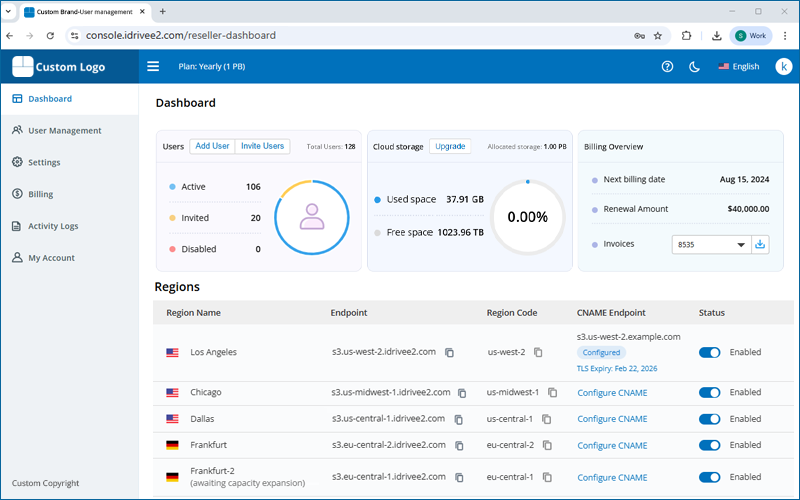
This functionality provides you,
- Branding control – Serve storage from your own domain for a fully branded experience.
- Flexibility – Integrate regional endpoints into your applications using your preferred naming convention.
- Security – Choose a self-managed certificate for full control or an IDrive® e2 managed certificate for automatic SSL protection.
Configure CNAME:
You can choose one of the following options to configure your custom domain:
Configure CNAME via Self managed certificate
IDrive® e2 self-managed certificate allows resellers to use their own SSL/TLS certificates for custom regional endpoints. You can configure a CNAME record to whitelabel your storage under your domain, ensuring secure and branded access for customers.
- Add DNS Records
Create CNAME records in your domain's DNS pointing to the region's global endpoint.
Example for the Oregon region:Name: s3.us-west-2.example.com
Value: s3.us-west-2.idrivee2.com
Name: *.s3.us-west-2.example.com
Value: s3.us-west-2.idrivee2.com - Provide SSL Certificate
Generate and upload an SSL/TLS certificate that includes both of the following Subject Alternative Names (SANs):
s3.us-west-2.example.com
Note: This ensures that all bucket and object URLs under your domain are covered.
*.s3.us-west-2.example.com - Whitelist Your CNAME
Add your chosen CNAME for the region in the console. Once validated, your custom endpoint will be active.
The following steps can help you configure the CNAME for the selected region with a self-managed certificate.
- Log in to your IDrive® e2 reseller account.
- Go to the 'Dashboard', then go to 'Regions'.
- For the chosen region, click 'Configure CNAME' under 'CNAME Endpoint'.
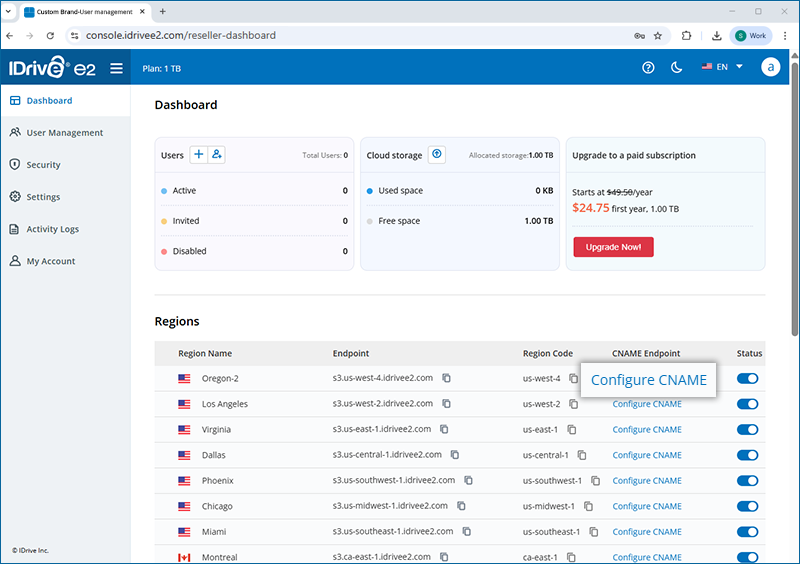
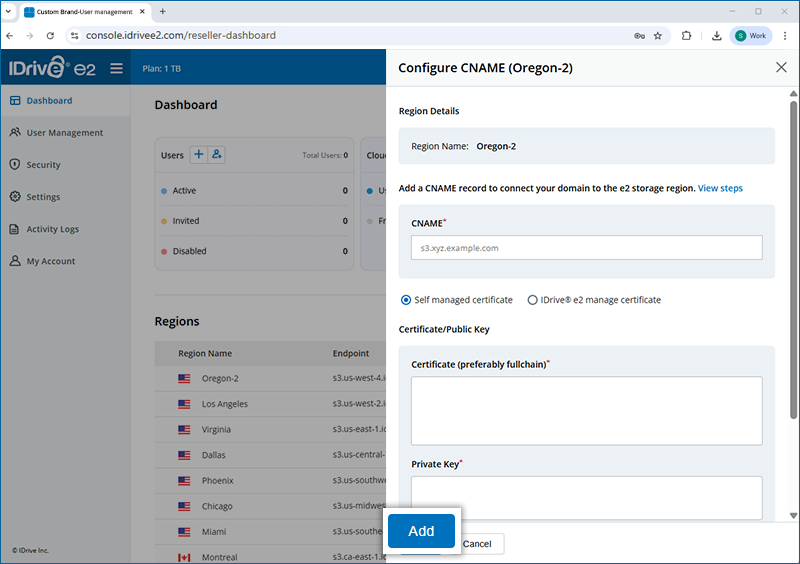
- In the 'Configure CNAME' window,
- Enter a 'CNAME'.
- Select the 'Self managed certificate' radio button.
- Enter a valid 'Certificate/Private Key'.
- Click 'Add'.
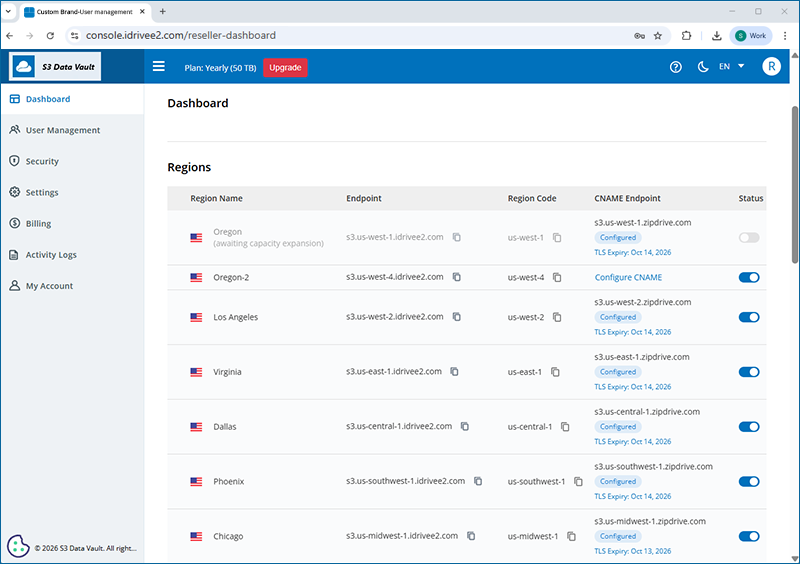
Note:- A valid SSL certificate is required and must be renewed before it expires.
- Add the valid CNAME records to the name server.
- Repeat the same steps for each region.
Configure CNAME via IDrive® e2 manage certificate
With IDrive® e2 managed certificates, resellers can automatically secure their custom domains for each region, eliminating the need for manual SSL purchases or renewals.
Certificates are issued and renewed automatically via Let's Encrypt or other supported ACME clients, ensuring continuous protection and a professional, branded access experience.
Prerequisites:
- Add a CNAME Record (For Region Mapping)
Add a CNAME DNS record for your domain to map your custom region endpoint. The recommended domain format is s3.<region-id>.<your-domain>.
Example:
Name: *.s3.us-west-2.example.com
Note: The prefix of your endpoint must start with "s3".
Value: s3.us-west-2.idrivee2.com
- Create a Wildcard CNAME Record (Virtual Host–Style Access)
To enable virtual host–style S3 access, create a wildcard CNAME record that points to the same regional endpoint.
Example:
Name: *.s3.us-west-2.example.com
Value: s3.us-west-2.idrivee2.com
- Create a CNAME Record (For SSL {DNS-01} Validation)
To enable SSL certificate issuance and renewal via Let's Encrypt or other ACME clients, add a CNAME record for the DNS-01 challenge.
Example:Name: _acme-challenge.s3.us-west-2.example.com
Value: _acme-challenge.verify.idrivee2.comThe following steps can help you configure the CNAME for the selected region with an IDrive® e2 managed certificate.
- Log in to your IDrive® e2 reseller account.
- Go to the 'Dashboard', then go to 'Regions'.
- For the chosen region, click 'Configure CNAME' under 'CNAME Endpoint'.
- In the 'Configure CNAME' window,
- Enter a 'CNAME'.
- Select the 'IDrive® e2 managed certificate' radio button.
- Click 'Add'.
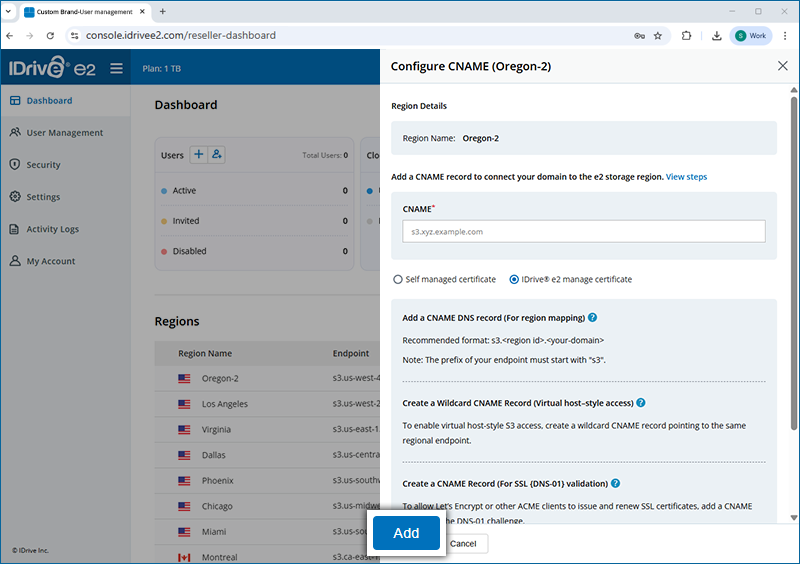
Your CNAME is now configured to the selected region with an IDrive® e2 managed certificate.
Note:
- A valid SSL certificate is required and must be renewed before it expires.
- Add the valid CNAME records to the name server.
- Repeat the same steps for each region.
- Whitelist your CNAME
Add your chosen CNAME for the region in the console. Once validated, your custom endpoint will be active. Refer to the FAQ on adding a CNAME using an IDrive® e2–managed certificate.
Once configured, your custom domain will be secured with an SSL certificate, providing customers with a trusted and fully branded access experience.
Warning: Ensure that all configured CNAME records remain intact, as removing them may disrupt functionality or affect access to your custom domain.
Whitelabel the IDrive® e2 web console
Resellers can use their brand name, logo, fav icon, custom domain URL, and copyright name to provide a fully branded experience for users when accessing the IDrive® e2 web console.
To add assets for white labeling,
- Login to your IDrive® e2 reseller account.
- Go to Settings > White labeling.
- Enter a brand name.
- Upload a logo and fav icon.
- Enter a domain URL. Ensure DNS is configured for the domain URL using CNAME.
- Enter a copyright name to be used for the white-labeled application.
- Check the preview and click 'Preview and Save'.
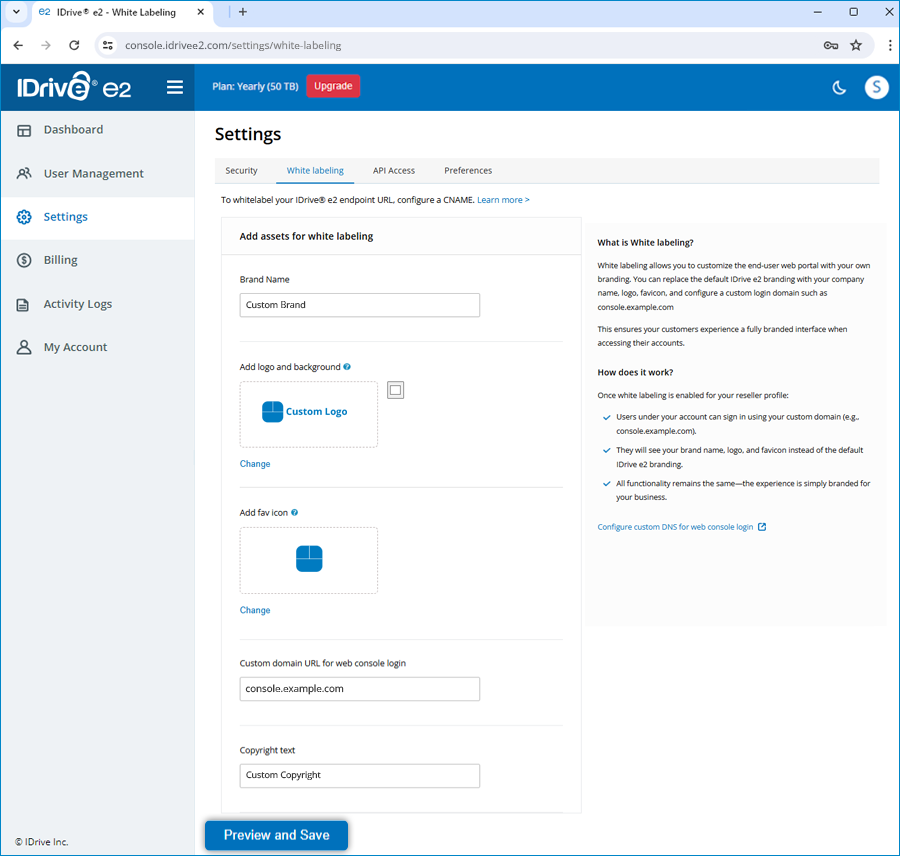
You can edit or delete the brand name, logo, fav icon, custom domain URL, and copyright name.
Configuring DNS using CNAME for white labeling
To enable your custom login domain, add the following DNS records in your domain's DNS manager.
- Web Portal Routing
Point your login domain to the IDrive® e2 web console:Name: console.example.com
Value: reseller-console.idrivee2.com -
SSL Certificate Setup
You can choose one of the following SSL options:
- E2-Managed SSL (Recommended)
- IDrive® e2 will automatically issue and renew the SSL certificate using an ACME challenge.
- To enable SSL certificate issuance and renewal via Let's Encrypt or other ACME clients, add a CNAME record for the DNS-01 challenge.
Example:Name: _acme-challenge.console.example.com
Value: _acme-challenge.verify.idrivee2.com - No manual certificate renewal needed.
- Self-Managed SSL
If you prefer to manage SSL yourself:
- You will generate and renew your own SSL certificate (full chain + private key).
- You are responsible for keeping the certificate updated on the IDrive® e2 systems.
- Only the CNAME record for web portal routing is required.
Name: console.example.com
Value:  reseller-console.idrivee2.com
- E2-Managed SSL (Recommended)
- Support Activation
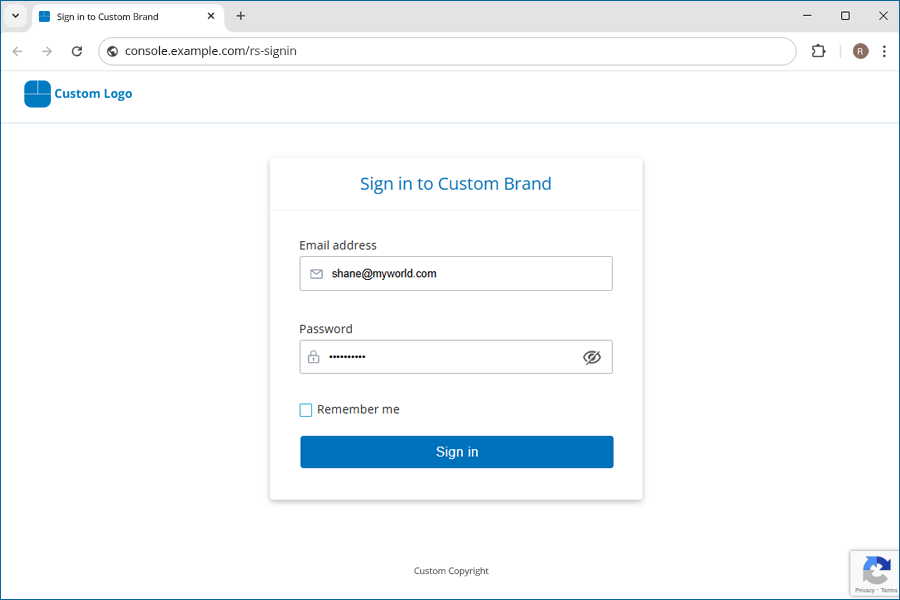
Contact Support to set up or update your SSL certificate and activate the white labeled web console. Upon activation, users will be able to sign in via your custom domain whitelabeled with your logo and brand name.
Important Notes
- Your custom domain must be valid, publicly accessible, and correctly configured before Support can enable white labeling.
- The custom login domain will become active only after Support completes the setup and updates the SSL certificates.
- Incorrect, missing, or removed DNS records can cause login issues or SSL errors for your users.
- DNS updates may take time to propagate based on your DNS provider.
- White labeling does not apply to email alerts from IDrive® e2. Be sure to set email notifications to false when creating a sub-user under your account.
Best practices recommended for resellers to manage users
Create user accounts manually
- Add each user under your reseller profile, then share their login credentials along with your custom web login URL.
Avoid using the "Invite User" option
- The invite feature sends a signup link directly from IDrive® e2, which breaks the whitelabel experience.
Disable all IDrive® e2 email notifications for sub-users
- Any automated email from the system displays IDrive® e2 branding.
- To maintain a fully white-labeled setup, ensure email notifications are turned off during user creation or editing.
Handle all communication through the reseller
- Users should reach out to you—not IDrive® e2—for support or account questions.
- This keeps the experience consistent and fully white-labeled.
Join IDrive® e2 today as a Reseller!
Save 50% | Starts at $2475.50/year $1237.50 First year, 50 TB